Main Screen
The main screen of Veezer app allows you to view and manage your photos and to access application settings.
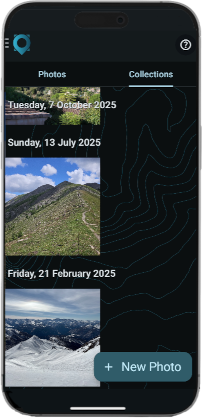
Photo Gallery
Browse your Photos
Photos are sorted by acquisition date (most recent first).
Tabs
For convenience you can organize your photos in two tabs:
- Photos: the default tab for your own photos
- Collections: the default tab for your imported photos
You can move your photos from one tab to another: Select a photo and choose Move to command in the menu.
View a Photo
Click on a photo in the gallery to open it in the Photo View .
Manage your Photos
Long press a photo to select it and access commands:
- Share: share the photo with various options.
- Delete: delete the photo.
- Menu | Download: download the Veezer photo as is in
OVZformat. - Menu | Move to: move the photo to Photos or to Collections tab
You can select several photos and manage a multi selection:
- Delete: delete the selected photos
- Menu | Select all: select all photos
- Menu | Download archive: create an archive of the selected photos for backup.
- Menu | Move to: move the selected photos to Photos or to Collections tab
New Photo
Take a New Photo with your phone.
Open file
Menu | Open file
Open a Veezer photo, saved on your phone or shared by another user.
Veezer photo files have OVZ file extension.
The photo will be added to your gallery.
Import Photo*
Menu | Import photo*
Import photos taken from a DSLR, drone or any other camera.
Imported photos must be in jpeg format (JPG file extension).
Imported photos are added to your gallery.
(*) with Veezer Plus subscription
Settings
Menu | Settings
Open Settings.