Calibration Data
Review and manage data created by calibrating your cameras.
This screen is available from main screen Menu | Settings | Camera calibration | Manage.
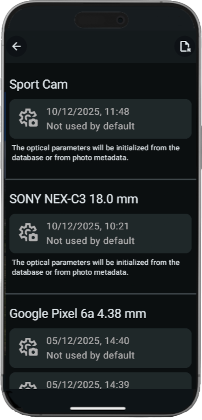
For simple case, you only have one calibration item corresponding to the initial calibration of your phone main camera.
Long press an item to get item actions:
- Use by default: can be changed to setup the calibration to use when you take new pictures.
- Remove: to delete calibration data.
If no calibration data is available, optical properties of new photos are set from app camera database or on photo metadata (exif, etc).
If the default calibration data is changed for a camera, existing photos will propose to update (in Photo View Menu | Update camera calibration).
Optical properties and camera calibration data can also be managed at photo level from the Photo Referencing screen (in Photo View Menu | Photo referencing).
Item details
Click on an item to display details and additional actions:
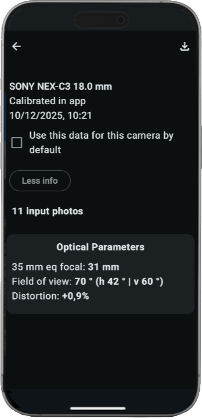
- Download calibration data: download calibration data in a
binfile for backup, or for interexchange. - Download calibration photos (when available): get calibration photos in a zip (mainly for support).
Import calibration data
Menu | Import calibration data
Import a calibration bin file (for interexchange or restoring).
Import calibration photos
Menu | Import calibration photos
Import calibration photos to calibrate an external camera (from a zip of photos), mainly for Veezer Plus users.
To calibrate an external camera (DSLR, drone, or anyother camera):
- Take checkerboard photos with your camera,
- Place the calibration photos in a zip file,
- Import the zip file.
Photos are then automatically calibrated in the app, and the calibration data is added to your database.