Embed Veezer Photos in An Other App
For app developpers: Learn how to use Veezer as a document viewer in your own application.

Veezer can be embedded in your own application to visualize Veezer photos and propose geolocation on photo.
Example of embedded Veezer photo display (the back button goes back to caller app):
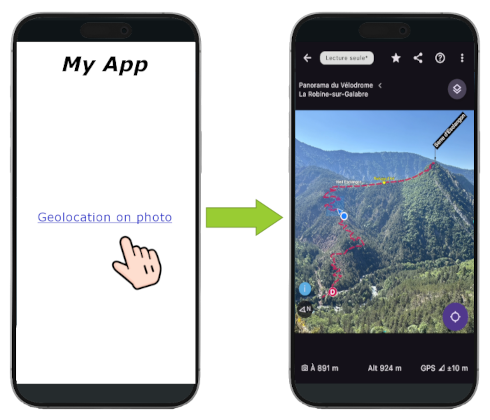
This integration does not require any additional software components in your application, it simply relies on Veezer app which must be installed independently.
To view a Veezer photo in OVZ format, your application can check if Veezer application is available, then start Veezer by specifying the desired settings.
Prepare your Veezer photos
Prepare your photos with Veezer and use the Share function to create an OVZ file.
See tutorial Share a Photo.
We recommend to use the options Protect content or Readonly.
Detect if Veezer is installed
You can propose a specific path in your application when Veezer is not installed, for instance, explain the benefit and invite the user to download the application.
Example of message:
Install our partner app Veezer to experience geolocation on photos.
View the route in detail and precisely track your position on the photo so you don't get lost during your outing!
Android
Use getPackageInfo with Veezer package id.
val isVeezerInstalled = try {
    context.packageManager.getPackageInfo("com.pixmapstudio.veezer1", 0)
    true
} catch (e: PackageManager.NameNotFoundException) {
    false
}
iOS
Use canOpenUrl with veezer scheme.
guard let veezerUrl = URL(string: "veezer://") else { return }
isVeezerInstalled = UIApplication.shared.canOpenURL(veezerUrl)
Other
On any platform, you can use a Veezer deep link (url using veezer scheme) to check is Veezer is installed.
If Veezer is installed, the app is opened to manage the url ; if not installed, open url fails.
Display a photo with Veezer
Build an URL to the OVZ file to display and send it to Veezer.
Use the option embbeded mode for a smooth integration.
Android
Use Intent and Extra for options.
val uri = FileProvider.getUriForFile(
    context,
    "${context.packageName}.fileprovider",
    file
)

val intent = Intent(Intent.ACTION_VIEW).apply {
    setDataAndType(uri, "application/ovz")
    addFlags(Intent.FLAG_GRANT_READ_URI_PERMISSION)
    setPackage("com.pixmapstudio.veezer1")
    putExtra("mode", "embedded")
    putExtra("shareable", "false")
}

context.startActivity(intent)
iOS
Use UIDocumentInteractionController and annotations for options.
Register the OVZ format in Info.plist UTImportedTypeDeclarations (see Info.plist below).
Use DocumentLauncher to launch Veezer from a file URL with options.
var annotation: [String: Any] = [:]
annotation["mode"] = "embedded"
annotation["callback_url"] = callbackUrl
DocumentLauncher.shared.launch(fileURL: fileURL, annotation: annotation)
On iOS, it's recommended to use the callback url option to get a proper behavior when Back button is pressed:
If not already done, implement a basic deeplink by registering your custom URL scheme in Info.plist CFBundleURLSchemes (see Info.plist below).
Implement the application handler .onOpenURL to setup custom action.
Info.plist:
(for OVZ file and custom URL scheme registration)
<?xml version="1.0" encoding="UTF-8"?>
<!DOCTYPE plist PUBLIC "-//Apple//DTD PLIST 1.0//EN" "http://www.apple.com/DTDs/PropertyList-1.0.dtd">
<plist version="1.0">
<dict>
    <key>LSApplicationQueriesSchemes</key>
    <array>
        <string>veezer</string>
    </array>
    <key>UTImportedTypeDeclarations</key>
    <array>
        <dict>
            <key>UTTypeIdentifier</key>
            <string>com.pixmapstudio.ovz-file</string>
            <key>UTTypeConformsTo</key>
            <array>
                <string>public.data</string>
            </array>
            <key>UTTypeTagSpecification</key>
			<dict>
				<key>public.filename-extension</key>
				<array>
					<string>ovz</string>
				</array>
				<key>public.mime-type</key>
				<string>application/ovz</string>
			</dict>
        </dict>
    </array>
    <key>CFBundleURLTypes</key>
    <array>
        <dict>
            <key>CFBundleURLSchemes</key>
            <array>
                <string>myapp</string> <!-- Your host app's scheme. eg myapp:// -->
            </array>
            <key>CFBundleURLName</key>
            <string>Host App Callback</string>
            <key>CFBundleTypeRole</key>
            <string>Editor</string>
        </dict>
    </array>
</dict>
</plist>
Other
On any platform, you can use a Veezer deep link (url using veezer scheme) to open an OVZ file in Veezer from an url and options.
Url and options are provided with query parameters.
Example:
veezer:///media?link=https://pixmap-studio.com/veezer/samples/neiges-du-sud/data/Veezer-CimeNegre.ovz&mode=embedded
Options
Embedded mode (recommended)
mode:embedded
With embedded mode, Veezer directly opens the photo the photo view screen and the Back button goes back to your application.
Callback url (recommended on iOS)
callback_url:<my_url>
(used only with embedded mode)
Specify an URL to call when pressing Back button, this way your app can perform a custom action when the visualization in Veezer is finished. On iOS, any deep link handled by your app allows to return smoothly to your app when the Back button is pressed.
Shareable
shareable:false
Discard Share feature in Veezer user interface.
Contact us if you need help or more advanced integration!