Improve location with a control point
For precise location, add one control point per photo.
Add a control point when you arrive at a location that is easily identifiable in the photo, more than 300 m away (1000 ft).
You can also specify the map coordinates of a landmark.
A control point allows you to improve or verify the location by pointing a reference position on the photo.
A single control point allows for 4 to 6 times more accurate positioning.
Identify a reference position
Use your own position as a reference during your journey. You can also directly specify the map coordinates of a position.
Choose a place that is easily identifiable in the photo (rock, tree, summit, pass, building, etc.).
The control point must be at least 300 m (1000 ft) from the photo to obtain good accuracy.
Example of control point:
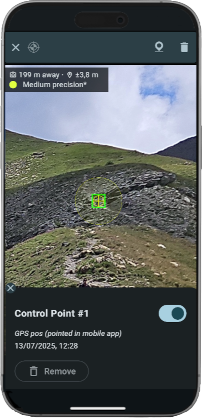
The greater the distance, the more accurate the control point will be.
Create a control point
Zoom in on the image to locate your position then tap Create Control Point button (or long-press the photo).
Point the position precisely on the photo.
Check that the GPS accuracy is sufficient.
A bad control point can completely distort the location on the photo.
Validate to create the control point. The location on the photo is immediately updated.
Edit a control point
Select a control point to modify or delete it.
About precision
A single control point improves accuracy by a factor of 3 to 6, depending on the phone, and achieves an accuracy of approximately 0.5% across the entire photo. This precision is suitable for GPS tracking within the photo.
Accuracy can be further improved by adding more control points.
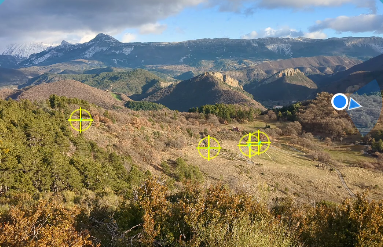
Example of photo with several control points: