
Goal: Capture 3D coordinates on a map to set control points in the Veezer app and prepare your scouting photos for future outings.
Planning a ski couloir project? Need to find a tricky passage between rock bars? Preparing scouting photos will make it easy and confident to use photo geolocation when you’re in the field.
Taking control points involves marking notable points on the photo and indicating their 3D map coordinates—the principle is simple, but it’s a real art 🙂
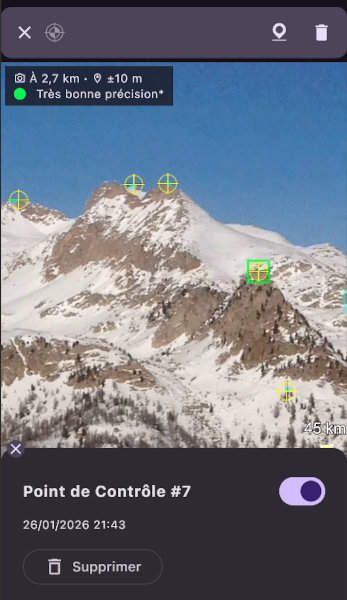
Control points in the Veezer app
Any cartographic reference is useful: a summit on a panorama app, a trail junction or building on a topo map, a distinctive tree on an aerial image, or a relief detail on a precise 3D model…
See also: Veezer Tutorial – Take a Control Point on a Map
This article lists mapping applications suitable for capturing 3D coordinates for Veezer.
Here, we focus on apps that can be used for free at home (with a good internet connection, and possibly from a computer).
PeakFinder: For Summits
PeakFinder is a paid mobile app, but a free web app is also available for use with an internet connection from a phone or computer.
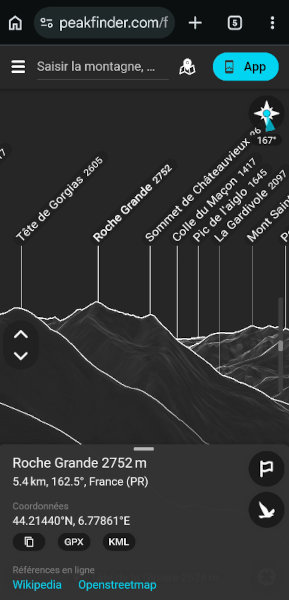
PeakFinder on mobile (web)
What We Like
- Perfect for identifying summits in a photo
- User-friendly interface
- Shortcut in Veezer (when the photo position is known)
- Easy coordinate capture (copy/paste + altitude)
- The web app works on both computer and phone
Drawbacks to Know
- Relief accuracy can be approximate
- Only for summits
- Cannot precisely capture coordinates outside labeled summits
How to Capture Coordinates
Click on a summit, then copy/paste the coordinates and note the displayed altitude.
Relief Maps: A Very Precise 3D Model
Relief Maps is a powerful 3D mapping app on mobile and a web app with free features that are already very useful for capturing 3D coordinates.
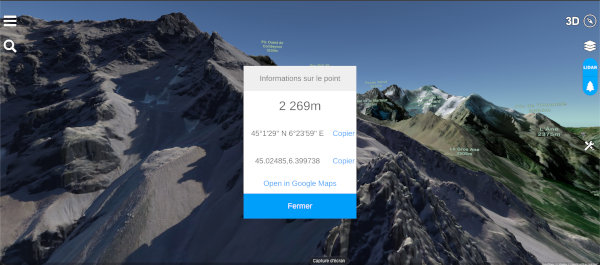
Relief Maps on computer (web)
What We Like
- 3D visualization with very precise relief in some areas, aerial imagery, and map available in the free version
- Works on both computer and phone (mobile app can be used for free)
- Easy coordinate capture on desktop (copy/paste + altitude)
- Shortcut in Veezer (when the photo position is known)
Drawbacks to Know
- Occasional but annoying bugs in coordinate capture (false coordinates)
- On mobile: blocking bugs in copying/pasting coordinates (prefer the desktop web app for now)
- 3D navigation takes some getting used to (limited camera orientation)
How to Capture Coordinates
Double-click on the map and select Info, then copy/paste the coordinates and note the displayed altitude.
RealityMaps on Desktop: A Precise and User-Friendly 3D Model with Aerial Imagery
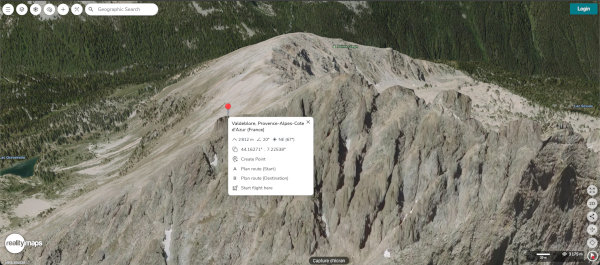
RealityMaps on computer (web)
What We Like
- 3D visualization with aerial imagery and precise relief
- User-friendly interface and experience, no bugs
- Easy coordinate capture (copy/paste + altitude)
Drawbacks to Know
- Desktop web app only (free), the mobile app is not usable for capturing coordinates
- 3D navigation still needs improvement (cannot tilt the camera upwards)
Right-click on the map, then copy/paste the coordinates and note the displayed altitude.
Cartes IGN: The IGN Mobile App, 2D and 3D
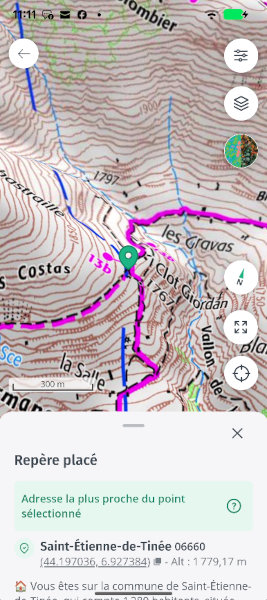
Cartes IGN mobile app
What We Like
- Access to essential IGN data: IGN map, aerial imagery
- Experimental but usable 3D
- Full experience in the free version
- Easy 3D coordinate capture (copy/paste + altitude)
Drawbacks to Know
- OSM data not available
- Experimental 3D (navigation needs improvement, loading bugs)
- France only
Geoportail: The IGN Web Portal
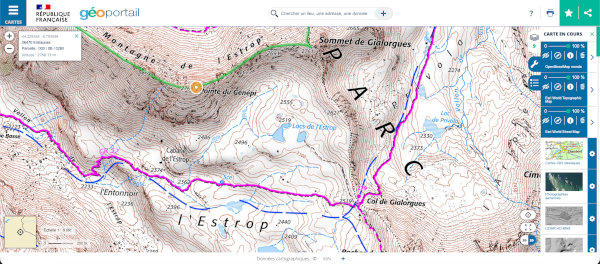
Geoportail on computer (web)
What We Like
- All IGN data
- Access to other data (OSM, ESRI, etc.)
- Easy 3D coordinate capture (copy/paste + altitude)
- Full experience in the free version
Drawbacks to Know
- The 3D rendering is very experimental and not really usable
- Outside France, data is limited and altitude is not available
Whympr: Topo Map Only
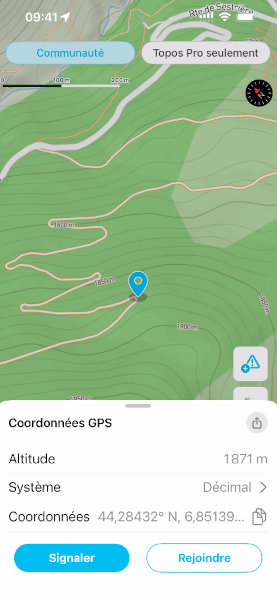
Whympr mobile app
What We Like
- Easy 3D coordinate capture (copy/paste + altitude)
Drawbacks to Know
- Very limited in the free version (2D only, topo map only)
WeTrek: IGN and OSM Data
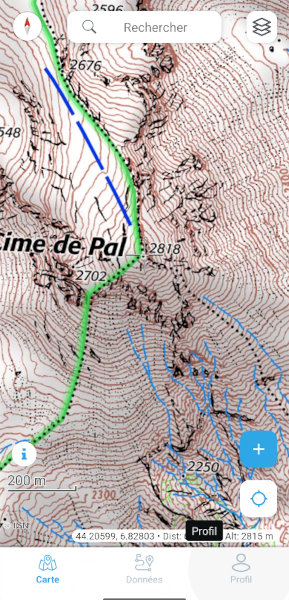
WeTrek mobile app
What We Like
- Reference data in the free version (IGN map, IGN aerial imagery, OSM topo map)
- Easy 3D coordinate capture (copy/paste + altitude)
- Ease of use
Drawbacks to Know
- Outside France, only OSM data is accessible and altitude is not available
If the altitude is not displayed: enable altitude display in settings (profile > settings > Display altitude at the center of the map)
Center the map on the desired point and tap once on the coordinates to copy/paste, and note the displayed altitude
Google Earth
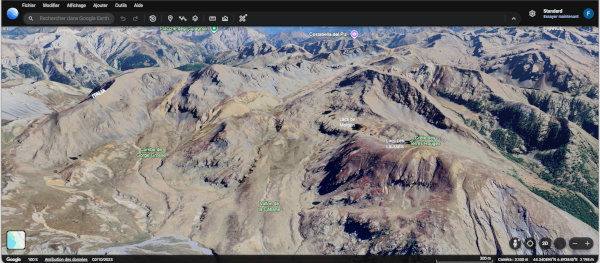
Google Earth on computer (web)
What We Like
- 3D model with aerial/satellite imagery
- Very precise 3D model in some urban or suburban areas
- Shortcut in Veezer (when the photo position is known)
Drawbacks to Know
- Relief accuracy is often average in mountains, but usable for background references
Outmap
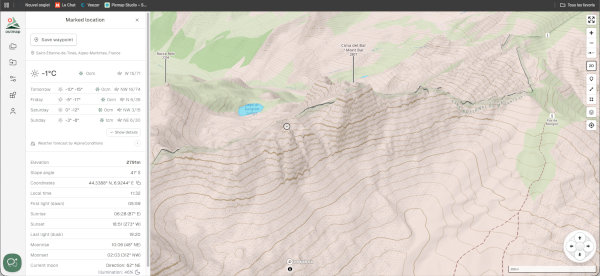
Outmap on computer (web)
What We Like
- Fairly precise relief depending on the area
- 3D visualization
- Easy 3D coordinate capture (copy/paste + altitude)
Drawbacks to Know
- Login required
- Low-resolution aerial imagery in the free version (mobile app)
- Aerial imagery not available in the free web app
- Mobile app ergonomics for coordinate capture: very annoying camera changes
PeakVisor
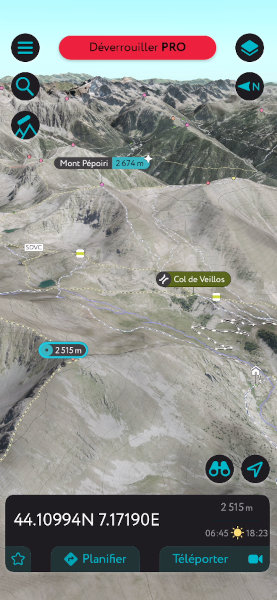
PeakVisor mobile app
What We Like
- A functional free 3D solution for capturing coordinates on mobile
- Aerial imagery and topo map
Drawbacks to Know
- Average relief precision
- Desktop solution and panorama not usable for capturing coordinates
- Ergonomics need improvement
- Manual coordinate entry (no copy/paste)
Conclusion
Our Choice:
- Summits → PeakFinder web app
- Topo map or aerial imagery → Cartes IGN app (alternative outside France: Whympr or Outmap)
- 3D model → RealityMaps and Relief Maps web apps on desktop
This article will be updated regularly!